Your one-stop helpdesk for connecting to WiFi, setting up TVs and displays, running AV equipment, and getting fast help from the IT team. Find a quick guide or submit a ticket — we'll take it from there.
Tap a topic for a quick walkthrough, or jump straight to a ticket if you'd rather have the team handle it.
Join the guest or members network on your phone, tablet, or laptop. Includes fixes for "can't connect" issues.
Turn on screens, switch inputs, and cast or mirror slides, videos, and announcements to any display.
Set up wired and wireless mics, adjust volume at the soundboard, and fix feedback or no-sound problems.
Have an event? Reserve heating, cooling, or fans for your room. Submit at least 48 hours ahead so the space is comfortable.
Something else, or need hands-on help? Send the IT team a ticket and set how urgent it is.
If a service is about to start and something isn't working, submit an Urgent ticket — the IT team is notified right away.
The IT team supports technology throughout the building. If it has a screen, a speaker, or a network cable — we can help.

Get online in under a minute on any device. If you get stuck, submit a ticket and someone will come help.
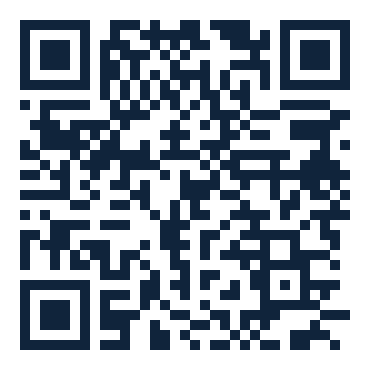
Open your phone camera and point it at this code.
Tap the "Join Saint Mary Coptic Church" prompt that appears — you'll connect without typing a password.
The password is built into the QR code, so it stays private. Prefer to type it in? Ask any IT team member for the code.
On most phones, just open the regular Camera app — no special scanner app needed.
Aim at the code on the left (or any printed copy around the church). Hold steady for a second.
A banner appears: "Join Saint Mary Coptic Church network." Tap it.
That's it — your device connects automatically. No password to type.
Try these quick fixes before submitting a ticket.
Make sure you're using the normal Camera app and holding steady about 6–10 inches away with good lighting. If nothing pops up, ask an IT team member for the password to type in manually.
Turn WiFi off and back on, or toggle airplane mode for 10 seconds. If a sign-in page is supposed to appear, open your browser and visit any site to trigger it.
Move closer to the sanctuary or hall, refresh the WiFi list, and make sure airplane mode is off. Some older devices only see the 2.4GHz network — ask IT if there's a separate name for it.
Tell your device to "Forget" the network, then rejoin fresh. If it keeps dropping in a specific room, submit a ticket so we can check coverage there.
Cast your laptop, phone, or tablet to any display in the Sunday School rooms, Fr. Bishoy Hall, and the Library. Pick the guide for your device below.
Connect to the church Wi-Fi first, and turn the display on with the remote. When a device name is requested, pick the one labeled for the room you're in.
Best for Windows laptops and Chromebooks.
For iPhone, iPad, and Mac.
For Android phones and tablets.
Try these quick fixes before submitting a ticket.
Make sure your device is on the Saint Mary Coptic Church Wi-Fi — casting only works when your device and the display are on the same network. Then refresh the cast list.
Check the TV is on the correct HDMI input for the Chromecast. Stop casting, wait a few seconds, and start again.
Turn the TV volume up, and check your device isn't muted. For a video, make sure the video's own volume is up too.
Move closer to the display and avoid switching apps mid-cast. If it keeps dropping, submit a ticket so we can check that room's setup.
The sanctuary uses a different setup from the rest of the church. There are two HDMI inputs — one for liturgy software, one for plugging in your own device.
This is the primary sanctuary screen used for liturgy and presentations. To show a presentation here, email it ahead of time so it's ready on the liturgy computer.
HDMI 2 is an open HDMI cable you can connect your own laptop or device to directly.
The chapel display uses a Microsoft display stick. It can only be mirrored from a Samsung or Windows device — Apple and other devices won't connect to it.
Mirror the chapel tablet using Smart View.
Mirror a Windows device to the chapel display.
Microphones, the soundboard, livestream, and recording — the essentials for running a service or event.
Wired and wireless mic basics.
Adjust levels without guesswork.
Fix the two most common problems fast.
Tell us what's going on and how urgent it is. Urgent tickets notify the IT team right away.
Choosing the right level helps the team respond in the right order.
Something is broken during or right before a service or event — no sound, screen down, livestream off. The team is alerted immediately.
Important but not happening live — set up a display for Sunday, prep a mic for an event, fix a recurring glitch.
Bigger projects and improvements — new equipment, cabling, a better layout, training a volunteer.
Ideas, feedback, and "it would be nice if…" requests that help us improve the church's technology over time.
Fill this out and the IT team gets it by email. Add as much detail as you can — room, device, and what you've already tried.
Reserve heating, cooling, or fans for your event. Please submit at least 48 hours before the event so the team can set the room comfortably.
Tell us where, what you need, and when. The team gets your request by email and prepares the room ahead of time.
Reach out directly, or submit a ticket for anything that needs tracking.
Volunteer-run technology support for St. Mary Coptic Orthodox Church.
For anything you want tracked or that isn't an emergency — setups, fixes, ideas, and feedback.
Submit an Urgent ticket and also message a team member directly so someone can respond immediately.
Check the WiFi, TV, and AV guides first — many issues take less than a minute to solve yourself.
Suggestions and feedback are always welcome.